Quick Start
Get Tinkerpie Wealth running in your own Google Sheet in about 5 minutes. You only need a Google account — everything stays in your own Drive.
- 1. Create a Google Sheet
- 2. Install the add-on
- 3. Open it & authorize
- 4. Set up your tabs
- 5. Import your CAS (or add holdings)
- 6. Refresh live values
- 7. See your dashboard
- 8. Set your retirement & goal assumptions
1. Create a Google Sheet#
Open a fresh spreadsheet — the fastest way is to visit sheets.new (or Google Drive → New ▸ Google Sheets ▸ Blank spreadsheet). Give it a name you'll recognise, e.g. My Wealth.
You can also add the add-on to an existing sheet — but a dedicated, blank sheet keeps your finances tidy and separate.
2. Install the add-on#
During the private beta, Tinkerpie Wealth is installed from its Google Workspace Marketplace page (it isn't publicly listed yet):
- Open the install link: Tinkerpie Wealth on Google Workspace Marketplace
- Click Install (then Continue), and choose your Google account.
- Allow the requested access when prompted.
You must be an approved beta tester. If you see "This app is not available" or the install is blocked, send us the Google email address you'll test with so we can add you to the beta, then try again.
3. Open it & authorize#
Go back to your spreadsheet and reload the page. Then either:
- Use the new 💰 Tinkerpie Wealth menu, or
- Use Extensions ▸ Tinkerpie Wealth ▸ Open dashboard.
The first time, Google asks you to authorize the add-on to work with your sheet.
"Google hasn't verified this app"? That's expected during the beta (the app runs under our own test project). Click Advanced ▸ Go to Tinkerpie Wealth (unsafe), then Allow. Your data still never leaves your Google account — see the Privacy Policy.
4. Set up your tabs#
From the 💰 Tinkerpie Wealth menu, click Set up / repair tabs. This creates a tab for every asset class (Mutual Funds, Stocks, FDs, PPF, EPF, Insurance, Bank Accounts, Property, Loans, Goals, Settings…) and opens the sidebar:
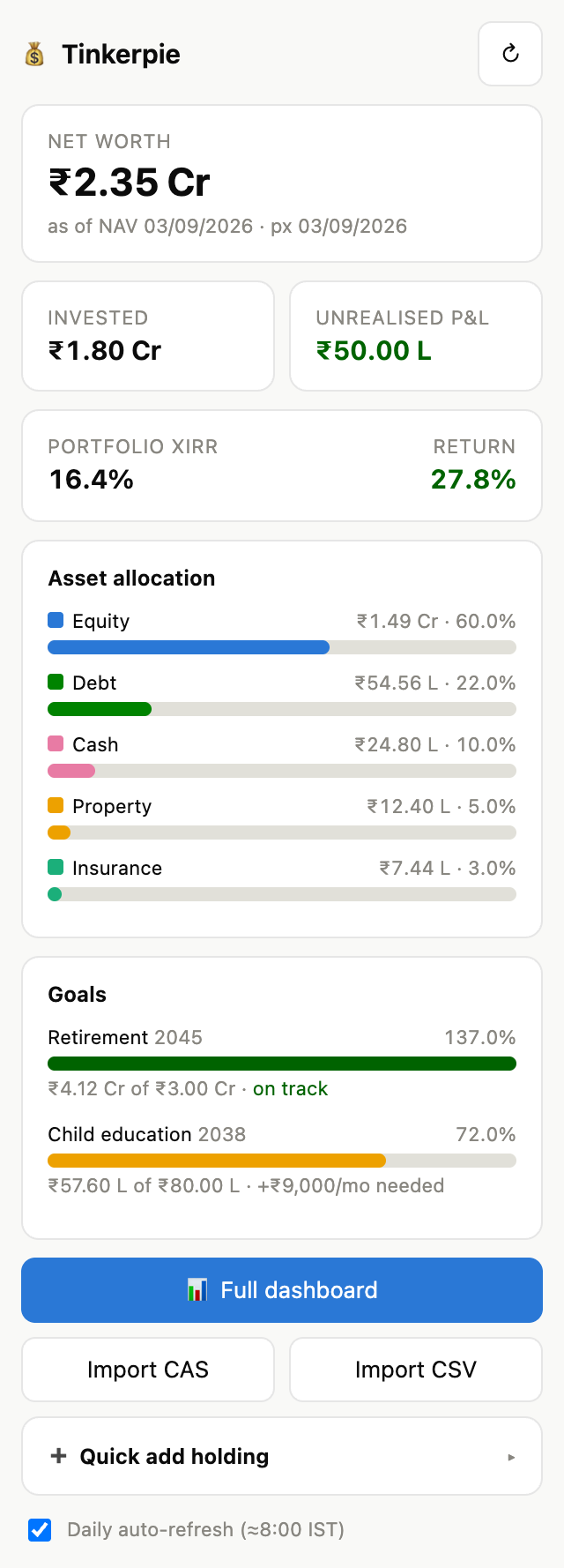
The sidebar is your control centre: net worth, allocation, goals, a ➕ Quick add form, and the ↻ refresh button.
5. Import your CAS (or add holdings)#
The quickest way to fill your portfolio is a Consolidated Account Statement:
- 💰 menu ▸ Import CAS (NSDL / CDSL / CAMS).
- Choose your CAS PDF and enter its password (usually your PAN).
- Review the parsed holdings, then Import.
Supported statements: NSDL and CDSL depository CAS (including Hindi / bilingual layouts) and CAMS / KFintech mutual-fund statements. The PDF is read in your browser — it's never uploaded.
Prefer to type things in? Use the sidebar's ➕ Quick add for FDs, PPF, EPF, insurance, bank accounts, property, loans and goals.
6. Refresh live values#
From the sidebar's ↻ button or the menu:
- Refresh MF NAVs — latest NAVs from AMFI (matched by ISIN).
- Refresh stock prices — live prices via
GOOGLEFINANCE(CAS company names auto-resolve to NSE tickers). - Refresh everything — both at once.
You can also enable a daily auto-refresh so values stay current on their own.
7. See your dashboard#
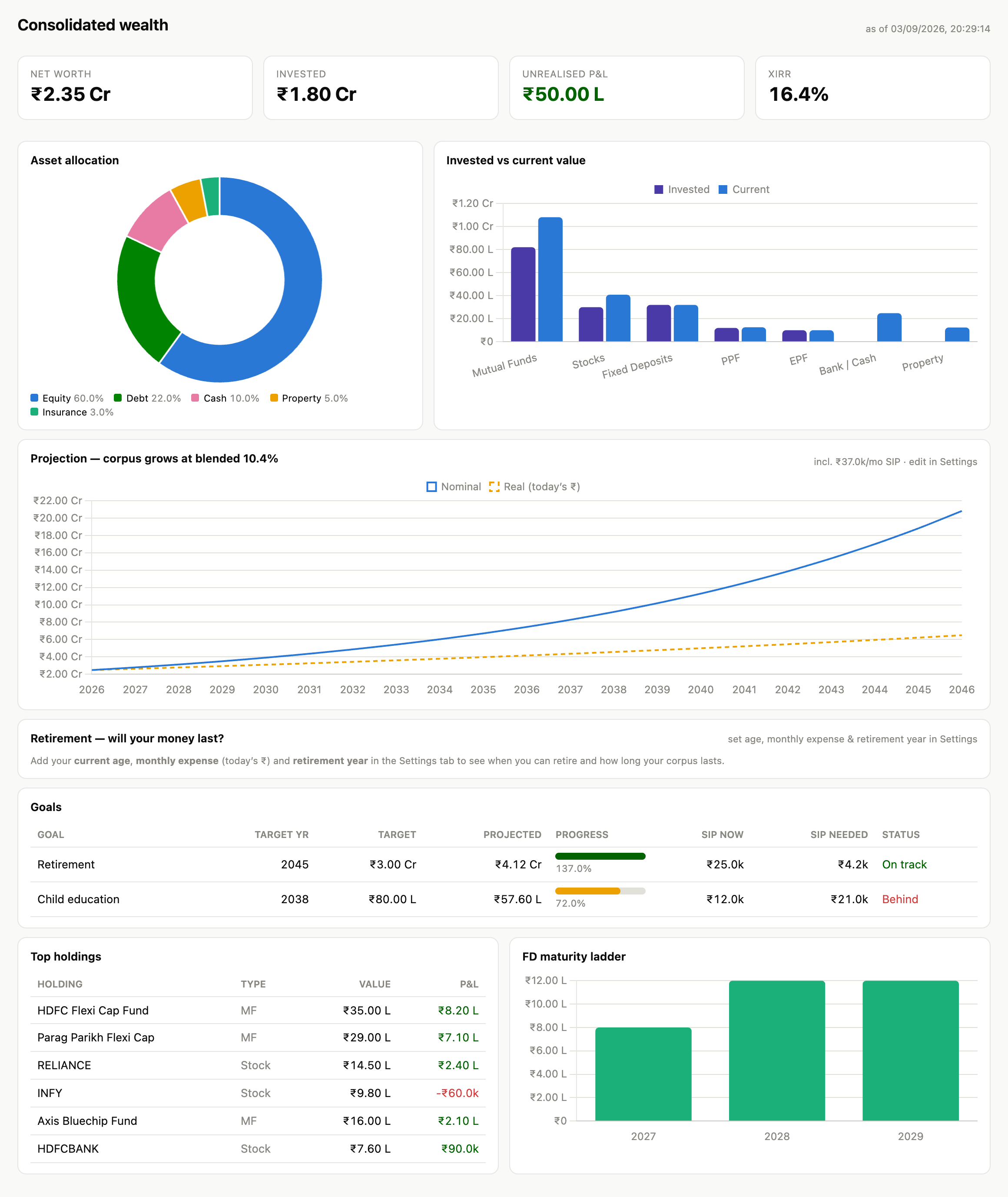
💰 menu ▸ Full dashboard (chart view) opens the rich view: allocation, invested-vs-current, a long-term projection, goals, top holdings, the FD maturity ladder, and an expense-based retirement drawdown.
8. Set your retirement & goal assumptions#
Open the Settings tab and fill in a few values to unlock projections and the retirement plan (all optional, sensible defaults otherwise):
| Setting | What it's for |
|---|---|
current_age |
Your age today (enables the retirement plan). |
monthly_expense |
Your monthly spend in today's ₹ — retirement corpus is derived from this. |
retirement_year |
The year you plan to retire. |
life_expectancy |
How long the plan should last (default 90). |
retirement_return_pct |
Expected post-retirement return (default 8). |
withdrawal_tax_pct |
Effective tax on withdrawals (default 0). |
angels_share_pct |
A % of net worth discounted from projections for concentration / tail risk. |
Then reopen the dashboard — the retirement panel shows your corpus at retirement, the corpus you'll need, and how long your money lasts.
Next steps#
- User Guide — every feature, in order.
- Estate & legacy planning — prepare an "In Case of Emergency" inventory and an encrypted report only your trusted people together can open.
- Something not parsing from a CAS, or a value looks off? Note the statement type and we'll take a look.